
Cloud Accounting Tips & Tricks: How to apply credit notes and reconcile refunds in Xero
20 October 2025
20 October 2025

You might find yourself handling credit notes if you need to reduce the amount of an invoice you have sent to a customer or, conversely, if a supplier needs to reduce the amount of an invoice they have issued to you.
If applied to an invoice before payment, the credit note will reduce the amount owed meaning that when the new amount is paid/received in the bank, Xero will be able to match the payment for reconciliation.
If a credit note is applied after payment, either a cash refund will be needed, or the credit note can be applied to a future invoice.
To apply a credit note to an existing invoice, open the invoice and click the three dots in the top right of the page and select Create and apply credit:
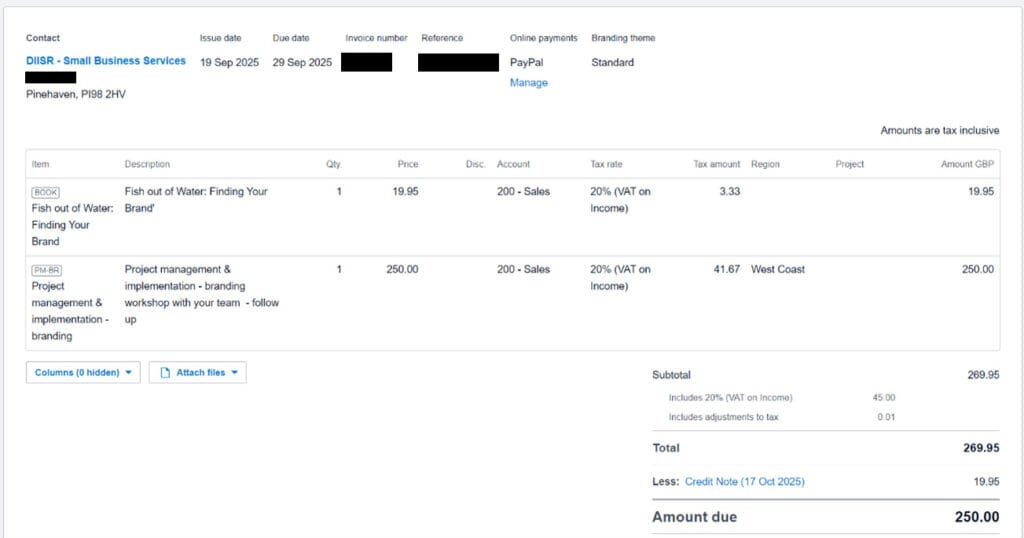
On the following screen, a draft credit note will be shown for the entire invoice. This can be edited to remove individual lines or the amount of credit to apply:
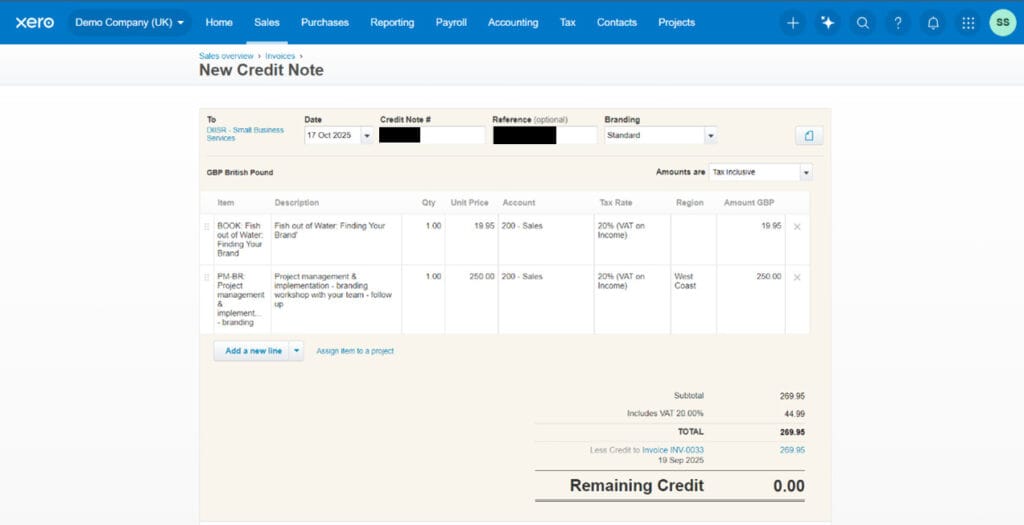
Once the details on the credit note have been edited, click Approve at the bottom of the page. This will take you back to the invoice with the credit now applied:
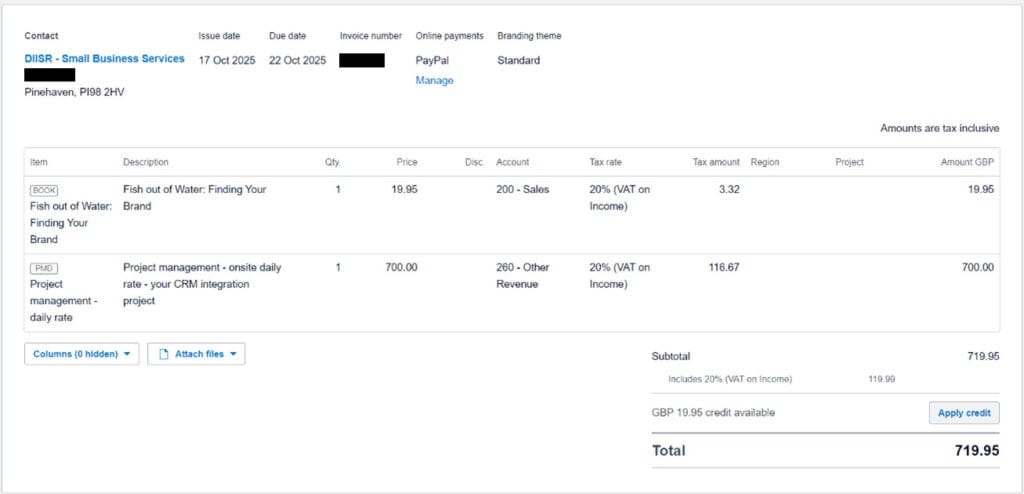
The payment for the new amount will then be able to be matched on the bank reconciliations page:

If the invoice had already been paid prior to creating the credit note, the following options would be available:
1. Apply the credit note to another invoice:
In the sales invoices section, select New Credit Note. If adding a credit note for a bill, go to the bills section and select New Credit Note from the New drop down menu in the top right corner of the page:
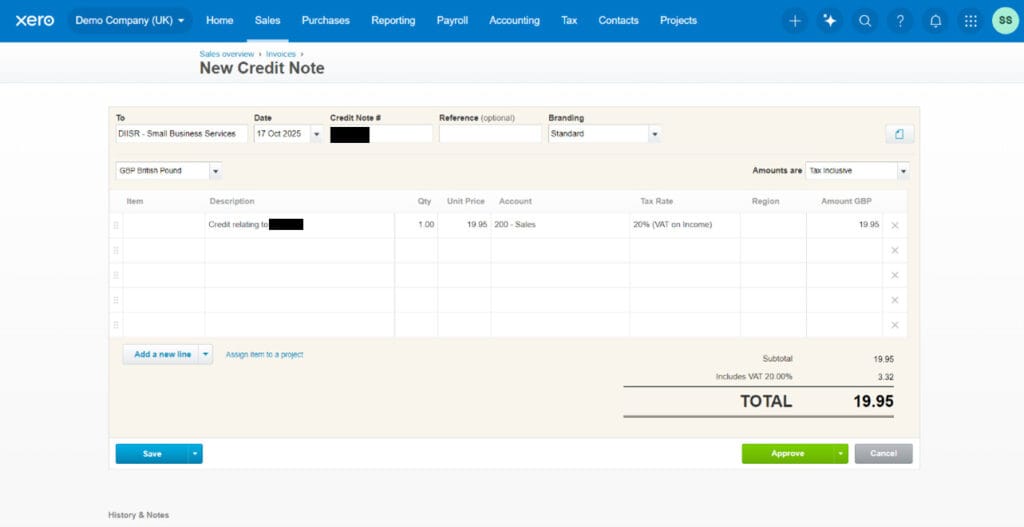
You will need to fill in the Contact, Description, Unit Price and Account fields. Once you have filled out the information, click Approve.
If there are other invoices for the same contact already on Xero, you will have the option to apply the credit note to these invoices:
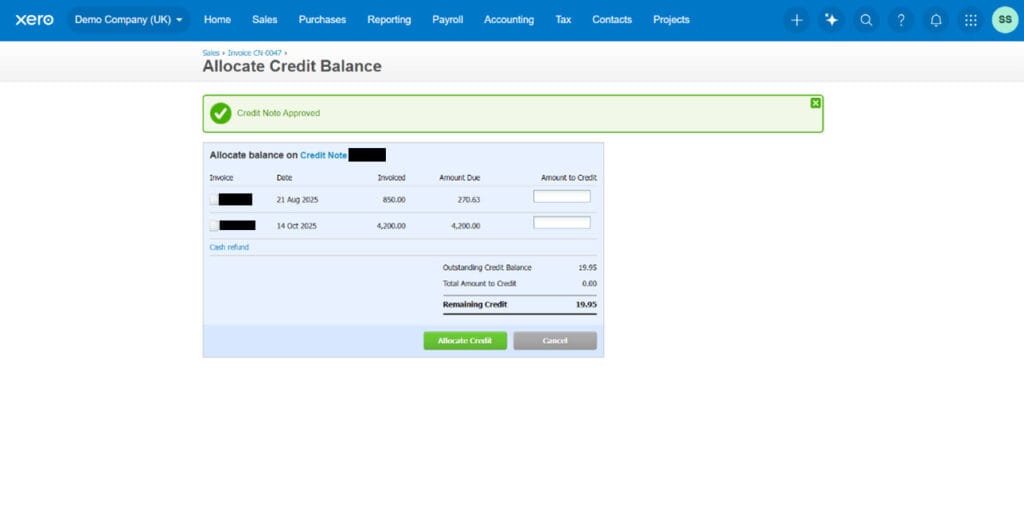
When the next invoice for the contact is added onto Xero, the credit note can be applied to this:
2. Reconcile a cash refund to the credit note
If the credit note is issued after an invoice has been paid, a cash refund may be paid instead of applying credit to future sales or purchases.
To apply a cash refund, open the credit note and enter the date the refund was paid or received at the bottom of the page and click Add Refund:
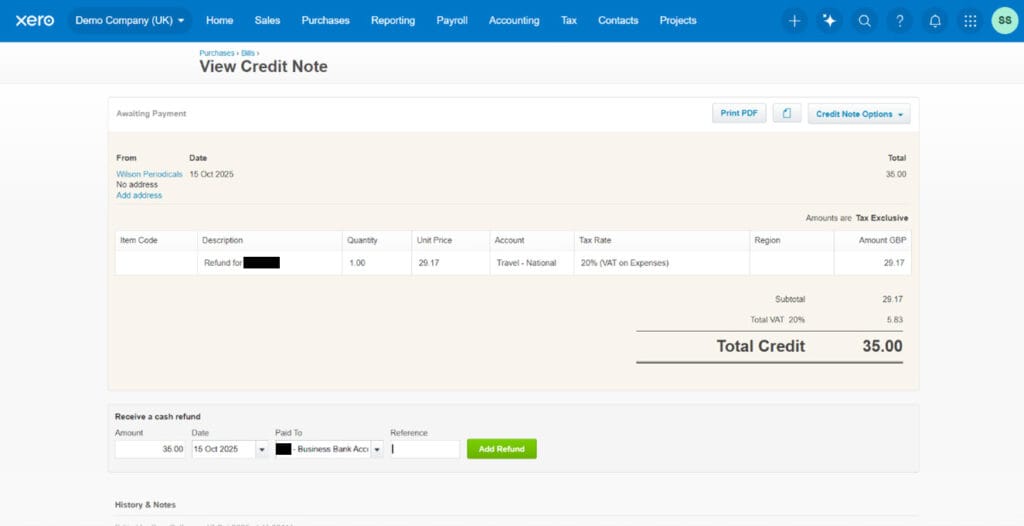
This credit note will then show up as a match in the bank reconciliation page:
If the refund is not applied manually to the credit note, Xero will not show the credit note as an option to match on the reconciliation page.
If you would like any assistance applying credit notes or reconciling refunds, please feel free to contact us at any of our offices. Likewise, if you have any further questions, we would be happy to hear from you.
Our cloud accounting experts in Bedfordshire, Cambridgeshire, and Hertfordshire are here to help you explore what works for your business, and to ensure you’re getting the most out of your chosen software.



We pride ourselves on delivering bespoke balanced solutions, combining strategic business advise with expertise in accountancy, tax and other specialist areas. We can help you to turn the numbers in to something meaningful, so that your business can realise its full potential.
View All ServicesIf you would like to see the full details of our data practices please visit our Privacy Policy